What you seePhone is gone, and the exchange login asks for a passkey
After a lost or replaced phone, can your exchange passkey still log you in?
What does your screen show right now? If it is a passkey prompt and the phone that used to answer it is gone, the passkey may still exist. It comes down to where it was saved. A passkey kept in iCloud Keychain or Google Password Manager can reach the new phone after you sign in to the same account and complete the keychain or password manager’s recovery checks. A passkey saved to a computer’s Chrome profile, or onto a USB security key, lives only on that computer or that key.
The exchange side has its own switch, and it decides how bad a lost passkey gets. On Binance it is called Must verify using passkey for important scenarios. With it on, logging in and withdrawing both need a passkey, and without one you are locked out, which is why Binance asks you to turn it off before you change phones. Already locked out with no phone? That is a security verification reset, covered further down. If what you lost is the 6-digit code from Google Authenticator, that is a separate problem: see authenticator codes after a phone change.
Synced or stuck on one device? Check where the passkey was saved
The FIDO Alliance, the industry group behind the passkey standard, uses two terms on its passkeys page. Passkeys synced between your devices through a cloud service are “synced passkeys”. Passkeys that never leave a single device, including ones on FIDO security keys, are “device-bound passkeys”.
To tell which kind you have, think back to the pop-up you saw when you made it. Binance’s guide How to Create a Passkey for My Binance Account? says that in the app you can add one with “your iCloud Keychain, a USB security key, your phone’s screen lock or PIN, or a different device (e.g., another mobile phone)”. The choices depend on the phone:
- iCloud Keychain (iOS only). Binance notes the passkey “will be synced across all your Apple devices using the same Apple ID”. Synced.
- Google Password Manager (Android only). You tap Create in the pop-up and confirm with your fingerprint or PIN. Synced through your Google Account; the Android section below has the details.
- USB/NFC security key. The passkey sits inside the hardware key and has nothing to do with the phone. Device-bound.
- Another device. You scan a QR code and the passkey is saved on a second phone or tablet. Google’s Chrome help says passkeys used this way “remain on the other device”, so whether it syncs depends on where that device saved it.
On the Binance website in Chrome, the browser pop-up offers different choices, and two of them matter here:
- Clicking Continue saves it to Your chrome profile. Binance’s wording: “the passkey created will only be saved on this device.”
- Clicking Save another way and picking Google Password Manager is the option Binance marks “recommended”, because the passkey “will be automatically synced with your Google account.”
Cannot remember which one you clicked? Plan for the worst case and treat it as stuck on one device.
| Where it was saved | After a phone change | If every device holding it is gone |
|---|---|---|
| iCloud Keychain | Still there on Apple devices with the same Apple Account | Keychain recovery: iCloud password, a reply to an SMS sent to your registered number, then a device passcode, 10 attempts at most |
| Google Password Manager | Still there on devices signed in to the same Google Account | Sign in on the new phone and enter the lost phone’s screen lock PIN, pattern or password |
| Your Chrome profile on a computer | It was never on the phone in the first place | This passkey cannot be restored; use another registered passkey or an allowed sign-in method, otherwise follow the exchange’s recovery process |
| USB or NFC security key | Unaffected, it lives on the key | This key has no synced copy; use another registered passkey or an allowed sign-in method, otherwise follow the exchange’s recovery process |
| A second phone, via QR code | Depends on where that phone saved it | Use the matching row above |
The sync and recovery rules in this table and the next two sections come from the FIDO Alliance’s passkeys page, Apple’s About the security of passkeys and Google’s Chrome help article Manage passkeys in Chrome (Android version), checked in November 2026.
iPhone passkeys: one lost device is fine, losing all of them means keychain recovery
Apple says passkeys sync between your devices through iCloud Keychain, which is end-to-end encrypted.
Lost one iPhone but still have an iPad, a Mac or a new iPhone signed in? You are mostly fine, because the passkey has a copy on those. A new device joins iCloud Keychain in one of two ways, according to Apple: by pairing with and being sponsored by an existing iCloud Keychain device, or by using iCloud Keychain recovery.
Every Apple device gone? Then keychain recovery is the only way back, and Apple lists the steps in this order:
- Authenticate with your iCloud account and password.
- Respond to an SMS sent to your registered phone number.
- Enter your device passcode.
There is a hard cap. iOS, iPadOS and macOS allow only 10 attempts. After several failures the record is locked and you have to call Apple Support for more tries. After the tenth failure, the escrow record is destroyed, and this recovery route with it.
Get two things ready before you start. First, a registered phone number that can receive texts; if the number went missing with the phone, get it working again first. Second, the passcode. If you are not sure of it, do not keep guessing, because the attempts do not reset.
Apple also offers an optional account recovery contact, which it says helps you keep access to your account even if you forget your Apple Account password or device passcode. If your phone is still in your hand, this is a good moment to set one up.
Android and Chrome: recovering from Google Password Manager needs the lost phone’s screen lock
Google’s Chrome help says a passkey can be saved to your device or to your password manager, and passkeys in Google Password Manager can be used “across your devices, as long as you’re signed in with the same Google Account on Chrome or Android devices.”
On Android, Google Password Manager uses the phone’s screen lock (password, pattern or PIN) to open your saved passwords and passkeys. That is also the key to getting them back. The tip on Google’s page reads: “If you lose your Android device, you can recover your passkeys on a new one. Sign in to your account and give the security PIN, pattern, or password of your lost device.” Note the last words. It wants the old phone’s lock, not the new one’s.
To check whether your exchange passkey is in there, use either path:
- In the Google Password Manager app, open Passwords and tap Passkeys.
- In Chrome on Android, tap More, then Settings, then Autofill and passwords, then Google Password Manager.
The Google Account help page is about a different passkey
Google has a second article, Sign in with a passkey instead of a password, and parts of it seem to contradict the Chrome page. They do not, because it covers the passkey you use to sign in to Google itself:
- To have passkeys on several devices, you repeat the creation steps on each one.
- After you sign out of an Android device, the passkey still signs you back in there for up to 6 hours. After that you need another method, and signing in again makes the device generate a new passkey while the old one expires.
The Chrome page covers passkeys stored in your password manager for signing in to other sites and apps. Your exchange passkey is one of those.
For a phone change, the two connect through order of operations. The new phone has to be signed in to your Google Account before the exchange passkey can sync across. Google also says that adding a passkey to your Google Account does not change or remove the authentication or recovery factors already on it, and that tapping Try another way skips the passkey and takes you back to your earlier sign-in choices.
B-01On screenThe passkey works on my computer but not on my phone
Where was it created? If you made it in a desktop browser and just clicked Continue, it went into that computer’s Chrome profile, and Binance’s page says such a passkey is “only saved on this device”. It was never on your phone. Nothing is broken.
No reset needed here. If you are still logged in to the Binance app, add a second passkey there: Account Center, tap the profile section at the top, Security, Passkeys (Biometrics), Add Passkey. You may be asked to verify once with an existing passkey or 2FA device.
If you chose Google Password Manager at creation and the phone still cannot use it, check that the phone is signed in to the same Google Account. That is the sync condition on Google’s Chrome help page.
Before you switch phones on Binance: is Must verify using passkey on?
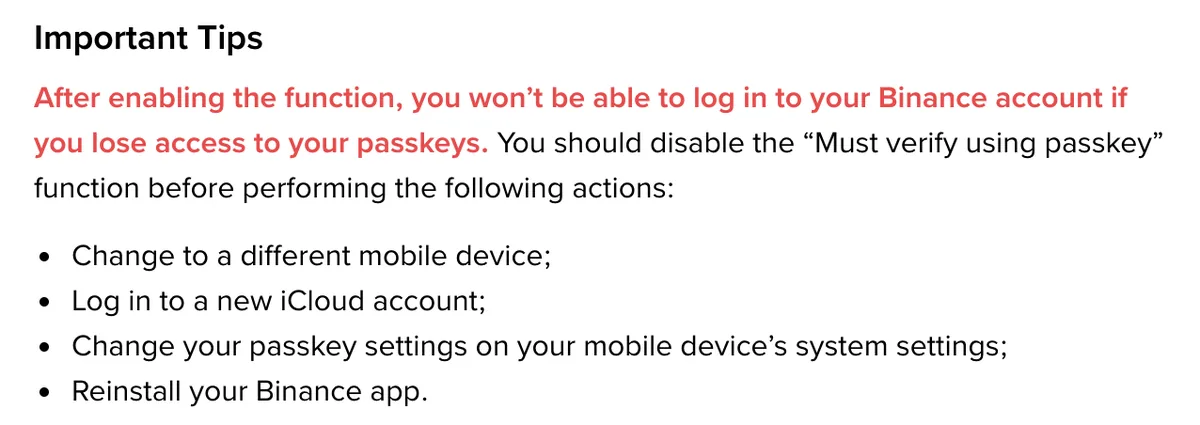
Binance’s article What Is the “Must verify using passkey” Function? says that once it is enabled, you must verify with a passkey when logging in and making a withdrawal, and you won’t be able to log in if you lose access to your passkeys.
Where to check the switch
The website path from that page:
- Log in, hover over the Profile icon and click Account.
- Go to Security and click Manage next to Passkeys. (The passkey creation guide calls the same item Passkeys (Biometrics).)
- Look at the button next to Must verify using passkey for important scenarios. On or off?
The two Binance pages do not use the same label, so go by what your own account menu shows.
Four actions Binance says need the switch off first
Quoted from the page’s Important Tips:
- Change to a different mobile device;
- Log in to a new iCloud account;
- Change your passkey settings on your mobile device’s system settings;
- Reinstall your Binance app.
The second one lines up with the creation guide: an iCloud Keychain passkey syncs to devices “using the same Apple ID”, so a different iCloud account simply does not have it.
Turning it off also takes a passkey
To disable it, you toggle the same button off and verify with your passkey. So switching it off needs a working passkey, which means doing it while the old phone is still in your hands.
Wipe, sell or give away the old phone with the switch still on and your only usable passkey stored on that phone, and you are stuck: without a passkey you can use or recover, the security verification reset is the route Binance provides.
Phone change day, in order
- On the old phone, while it still works, log in and turn the switch off. Verify with the passkey on that phone. Reason: disabling requires passkey verification.
- Install the Binance app on the new phone (version 2.60 or above, on iOS 16 or above or Android OS 9 or above) and sign in to the same Apple Account or Google Account the old phone used. Reason: synced passkeys only reach devices on the same account.
- Log in to the exchange on the new phone and confirm the passkey prompt appears and passes. If it does not, add a new one under Add Passkey in the app.
- Want the switch back? Turn it on from the new phone. Read the confirmation pop-up, tick all the checkboxes, click Confirm, then verify with your passkey. If a pop-up says some requirement is not met, meet it first.
- Clear the old device last. If something you are retiring holds a passkey that exists nowhere else (say, an old laptop’s Chrome profile), remove that passkey from your account while the device is still around: Binance says removing a passkey from Chrome requires verifying with that same passkey. Leave the synced one alone, since the new phone is using it.
B-02On screenNo passkey option appears when I log in on the new phone
Go through these, and if nothing turns up, stop retrying:
- Which account is the new phone signed in to? A synced passkey only shows up on devices with the same Apple Account (with iCloud Keychain on) or the same Google Account.
- Screen lock. Google’s Account help lists “Turn on your phone’s screen lock” as a step before creating and using a passkey, and on Android, Google Password Manager relies on the screen lock to open passkeys. If the new phone has no lock yet, set one.
- App and system versions. Compare with step 2 of the phone change list above.
- It was never on a phone. A passkey in a computer’s Chrome profile or on a USB security key will not appear on any phone.
If the switch is off and you can still get in another way, log in and add a fresh passkey on the new phone. If the switch is on and the old device is gone too, read the next section.
No phone, no way in: resetting security verification on Binance
For anyone who loses their passkeys with the switch on, Binance’s switch article points to How to Reset 2FA When I Can’t Access My Binance Account?. You start from the website login page. Only one step is passkey-specific: after you enter the account email or phone number, if a pop-up asks for your passkey, click Cancel, then My Passkeys Are Not Available, and carry on with the security verification reset.
The reset makes you prove yourself with the verification methods you still have, and a lost phone can take the authenticator app and the SIM with it. Which methods may still work, each screen of the reset, the possible results after you submit, and the withdrawal pause of up to 48 hours afterwards are all in the Binance reset part of authenticator codes after a phone change.
If your phone number died along with the old phone, changing it after you log in is covered in changing your Binance email or phone number. Other exchanges have no shared process, so look for the matching option on their own login page. Type the address yourself rather than tapping a link from a text, email or direct message.
B-03On screenI already factory reset the old phone, and the switch was on
A factory reset wipes the phone. Whether the passkey survived depends on where it lived:
- iCloud Keychain or Google Password Manager: it has a cloud backup. Sign the new phone in to the same account and complete the recovery checks described above: Apple requires access to the keychain, and Google asks for the lost phone’s screen lock PIN, pattern or password. Once recovered, the passkey can verify your login even with the switch on. Then use the last section to decide whether to keep the switch on.
- Only on that phone, or you are not sure: check for another passkey already registered to the exchange account. If none works or can be recovered, click Cancel, then My Passkeys Are Not Available, and follow the reset above.
Back in? Remove the passkey that was on the lost device
Google’s Account help says that if you lose a device with your passkey, you should remove that passkey from your Google Account. From a device you can use, open your Google Account and:
- Tap Security & sign-in.
- Under “How you sign in to Google”, tap Passkeys and security keys.
- Select the passkey to remove and tap Remove.
For a passkey your Android device created automatically, the route is Security & sign-in, then Manage all devices under “Your devices”, tap the device and choose Sign out. If several sessions share the same device name, Google suggests signing out of all of them.
On the exchange, Binance keeps the passkey list under Security, Passkeys (Biometrics):
- In the app: tap the Delete icon next to it and verify with a passkey or 2FA.
- On the website in Chrome: click Remove. Binance says removing a passkey from Chrome must be verified with that passkey. You no longer have the one from the lost device, so going by that wording, the app is the workable place to delete it.
Binance’s pages do not say which passkeys remain on the list after a reset, so log in and look. If you cannot tell which entry belongs to which device, tap the Edit icon in the app and give it a name you will recognise.
Should you turn on “Must verify using passkey” at all?
What you gain is stronger protection. Binance describes the function as a way to better protect your account and assets, and with it on, both login and withdrawals go through the passkey. On passkeys themselves, Google’s Chrome help says a passkey protects you from phishing and is unique for each site and app you use. The cost is on the same Binance page: no passkey, no login.
Worth considering if:
- Your passkey is synced and you know what recovering it takes. For Apple, that is the iCloud password, a registered number that can receive texts, and a device passcode. For Google, a Google Account you can sign in to and the old phone’s screen lock.
- Your account holds a second passkey stored somewhere else, for example one in iCloud Keychain and one on a USB security key, so losing one place still leaves the other.
Hold off if:
- The only passkey on the account is in a computer’s Chrome profile or on your only security key.
- You are about to change phones or iCloud accounts, or you reinstall apps often. Those are exactly the actions Binance wants the switch off for, so you would be turning it off again and again.
While the switch is on, losing access to every registered passkey means following Binance’s reset process if none can be recovered. So on phone change day, before the old phone is wiped or handed over, open Security and look at the Must verify using passkey for important scenarios button. If it is on, turn it off while the passkey on the old phone still works.
Short answers
Is a passkey stored on the phone or in the cloud?
It depends on where it was saved when you created it. A passkey in iCloud Keychain syncs to Apple devices that use the same Apple Account, and one in Google Password Manager is available on Chrome and Android devices signed in to the same Google Account. A passkey saved to Your Chrome profile on a computer stays on that computer, as Binance's page says, and one on a USB security key lives only on that key. Lose the device or the key, and those two are gone with it.
Do I need to turn off Must verify using passkey before switching phones?
Yes. Binance says that with the function on, you cannot log in if you lose access to your passkeys, and it asks you to disable it before changing to a different mobile device, logging in to a new iCloud account, changing passkey settings in the phone's system settings or reinstalling the Binance app. Turning it off also needs passkey verification, so do it while the old phone still works.
Filed under these lines
T-4Authenticator and passkeysT-5New phone or email